Recorders · OBS, screencast edition
OBS for screencast voiceovers: the free recorder that cleans while it rolls
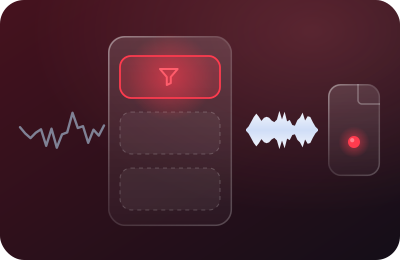
Strip away everything OBS is famous for elsewhere — the scenes, the overlays, the going-live of it all — and what's left is remarkable for our narrow craft: a free, open-source screen recorder that is the only standard screencast tool with genuine live noise suppression built in. This is OBS set up by and for tutorial-makers. No broadcasting anywhere on this page.
Filter behavior verified against the OBS Knowledge Base on 20 September 2026. OBS is free software from a nonprofit project; there is no affiliate relationship — this is the desk's standing no-commission recommendation.
Why OBS matters to the recording-side argument
Everywhere else on this desk, "remove noise while recording" requires adding a layer under the recorder. OBS builds the station in: its Noise Suppression audio filter processes your microphone as you speak, and the file on disk contains the already-cleaned voice. For the price of a checkbox, the master recording — the thing your course will be re-cut from for years — never contains the fan, the hum, or the street. That's our whole philosophy shipped as a default feature, at zero dollars.
The five-minute audio setup
- Add your mic once, deliberately. In Settings → Audio, set your actual microphone as the mic/aux device (and disable devices you don't use — every live device is a noise source waiting for its moment).
- Attach the suppression filter. In the Audio Mixer, click the gear beside your mic → Filters → + → Noise Suppression. Choose RNNoise — the neural method, notably better at separating speech from noise with minimal voice damage; it costs a little more CPU than the alternative. On a machine that's already sweating, switch the method to Speex and keep suppression moderate — pushed hard, Speex is the one that turns voices robotic. (A third, GPU-vendor method exists for specific hardware; for seated narration in a normal room, RNNoise is plenty and runs anywhere.)
- Put suppression first in the chain. If you later add other audio filters, keep Noise Suppression at the top of the filter list so everything downstream — including any gain — works on the cleaned voice rather than amplifying the room first.
- Level with the mixer meter. Speak at narration volume; keep the mixer riding the yellow, peaks short of red. Same −12…−6 dB logic as everywhere else, just with OBS's traffic-light meter as the dial.
- Give narration its own track. In Settings → Output → Recording, enable a second audio track and assign the mic to it (track assignment lives behind the mixer's Advanced Audio Properties). Your editor then receives voice and system audio separately — the same separability Camtasia and ScreenFlow charge for.
- Record a sixty-second test with the filter on and off. Toggle the filter's eye icon between two takes and listen in headphones. You're calibrating trust: hear what RNNoise removes in your room, and whether your consonants survive it untouched. They usually do; confirm it once and stop wondering.
- Your mic
- Noise Suppressionfirst in the list
- Any other filtersincl. gain, after it
- File on diskalready cleaned
- RNNoisethe neural method: better at separating speech from noise, a little more CPU
- Speexlighter on a sweating machine; keep it moderate, because pushed hard it turns voices robotic
The screencast-not-studio rule
OBS tutorials on the wider internet assume you're building a broadcast rig, and the audio advice inflates to match — filter stacks four deep, compressors, gates, the works. For narrated screen recordings, resist all of it. One suppression filter, honest input gain, a quiet-ish room. Every extra stage is another thing that can subtly chew your voice for forty minutes before you notice. Filter minimalism is a feature of this workflow, not a beginner's compromise.
What OBS costs you instead of money
- Setup literacy. Scenes and sources are five minutes of learning that Loom never asks of you. For a repeatable screencast setup (one display capture, one mic), you do it once and never again.
- No editor attached. OBS records; it does not cut. You'll pair it with whatever editing tool you already use — which is also why its clean-at-capture audio matters so much: the file has to arrive good, because OBS won't see it again.
- Recording-format homework. Record to MKV (crash-safe) and remux to MP4 in File → Remux Recordings — the one OBS idiosyncrasy every screencaster should adopt on day one.
- Restraint required. The same power that makes OBS free and endless makes it easy to over-build. See the panel above; re-read it whenever tempted.
OBS + a suppression layer: when both?
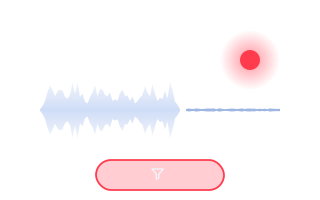
Rarely. If RNNoise handles your room — and for steady fan/hum noise at sane suppression levels it usually does — adding Krisp underneath is redundant processing on the same problem, and stacking two suppressors can degrade voice more than either alone. The honest cases for the paid layer on an OBS machine: your noise is erratic and RNNoise audibly struggles with it in your A/B test, or you want one identical cleaning stage under every app you record with — OBS today, Loom tomorrow, Camtasia next week — so every file in the course library shares one sonic fingerprint. That second reason is the one that actually moves course creators; we weigh it properly here.
The desk's straight recommendation
Start free: OBS with RNNoise on its own narration track is the best zero-dollar voiceover capture there is, and for many rooms it's simply the answer. If your A/B test says your noise beats RNNoise — or you need one clean chain across several recorders — that's the moment the paid layer earns its keep.
Get OBS (free, no strings) Or try Krisp for the hard rooms
OBS is linked direct — free software, no affiliate relationship, we earn nothing. The Krisp button is the paid one: a plan started there earns the desk a commission, and krisp.ai still charges you its own list price. Krisp pricing verified 20 September 2026: 7-day trial; Core $8/mo annual or $16 monthly; 60-min/day free tier remains in help-center docs.
The desk's OBS verdict
For screencast narration, OBS is the philosophical proof of concept: noise handled at the recorder, master files that never knew your room was loud, total cost zero. Its price is paid in patience rather than dollars, and for a tutorial-maker that price is low — one afternoon of setup for years of clean captures. Pair it with the one-pass narration method and thirty seconds of room tone (yes, even with suppression — tone is about edit continuity, not noise), and you've built a course-audio pipeline that owes nobody a subscription.
Before your first real session: the pre-REC checklist, and the bar your audio actually has to clear.