Loom
Loom's noise filter is real — but it works on playback, and your downloaded MP4 keeps the original audio. That changes your whole recording plan.
Take 01 · The narration desk

Narrowcast is a small editorial desk for one narrow craft: the audio side of screencasts and course voiceovers. Not music production, not live streaming, not meetings — the specific discipline of narrating a screen while a recorder is rolling, and getting a take you never have to repair.
Most tutorial-video advice treats audio as a post-production problem: record whatever, then scrub the noise out of the finished file. We think that order is backwards for screencasters. A course voiceover is re-recorded, re-cut and re-exported for years; every cleanup pass you bake in early gets re-applied, re-encoded and second-guessed forever. The cheaper habit is to stop noise before it reaches the file — with the recorder's own live features, a suppression layer under it, honest input levels, and a workflow built around not needing take two. Cleanup still has a place. It's the fire extinguisher, not the stove.
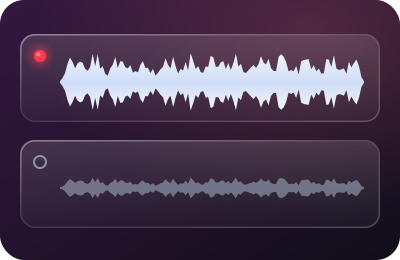
Live noise removalWhat lands in the file is already quiet.
Cleanup afterwardsThe file already holds the problem.
Live noise removal happens while you record — an OBS filter, a system-wide layer like Krisp, a recorder's built-in processing. What lands in the file is already quiet. Cleanup afterwards happens in an editor, on audio that already contains the problem. Both are legitimate. Only one of them protects your master file. We map the whole decision here.
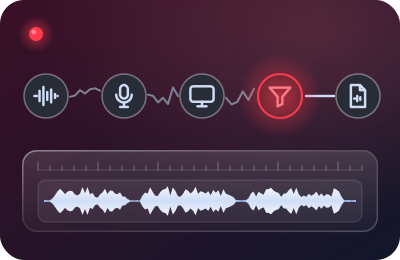
If you read one page, read the recording-side guide. It covers the signal chain from mouth to file: input device sanity, levels, live suppression, room tone, and what each of the big screen recorders actually does to your voice on the way in — with what we verified in vendor docs, dated.
Each of these covers one recorder from the recording side only — what it captures, what it processes live, what it quietly defers to the edit, and how to set it up so narration lands clean. We don't write cleanup tutorials for editing suites; that's a different craft with its own specialists.
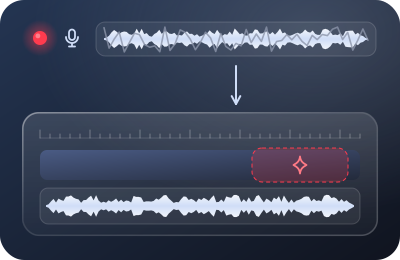
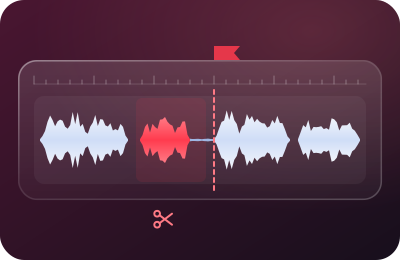
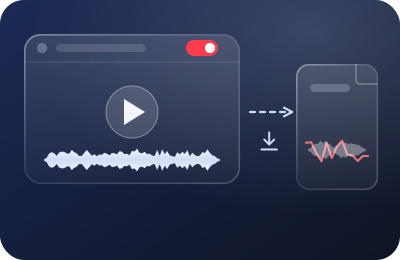
Loom's noise filter is real — but it works on playback, and your downloaded MP4 keeps the original audio. That changes your whole recording plan.
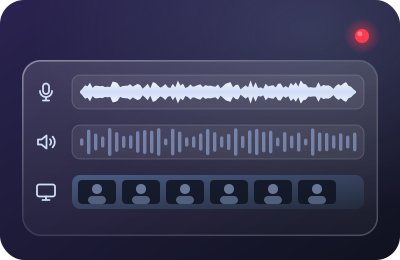
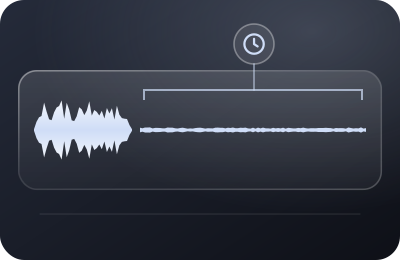
Camtasia records your mic raw and saves its noise tools for the timeline. Here's the recording-side workflow that makes those tools unnecessary.
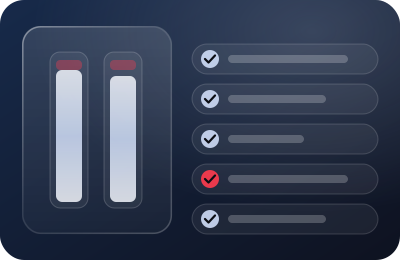
The Mac veteran captures narration on its own track — a gift, if you feed it a quiet signal. A recording-first setup for ScreenFlow 10.
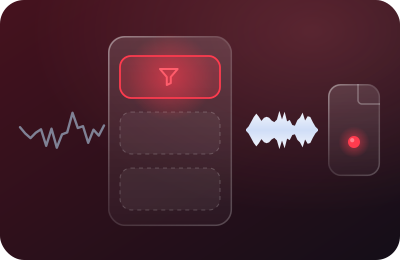
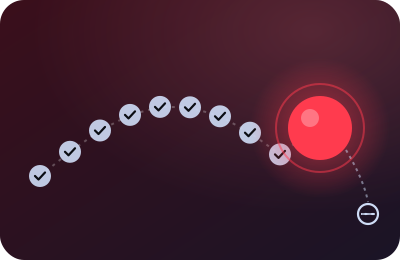
The only free recorder here with true live noise suppression — RNNoise runs while you speak. OBS set up as a screencast tool, nothing else bolted on.
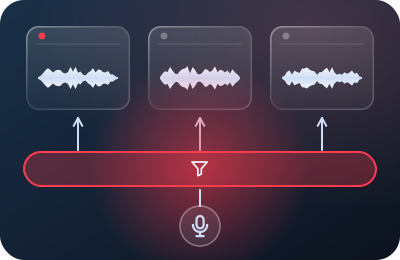
One suppression layer that sits between your mic and every recorder above. Where it earns its subscription for course creators — and where it doesn't.
The craft shelf
The desk's standing rule: we recommend software, settings and habits of sequence — never hardware. These four are the technique pages we send everyone to, whatever they record with.
Narrowcast is reader-supported. Some links to vendors are affiliate links, marked as sponsored and disclosed next to every button — if you buy through one, we may earn a commission at no extra cost to you. Vendors we link without any affiliate relationship are labeled that way too. Two things never change: prices and limits are checked against vendor documentation with the verification date printed on the page, and every recommendation list here includes at least one option that pays us nothing. On this site that's usually OBS's built-in suppression filter and the room-tone technique — both free forever.
Vendor facts across this site were last verified against live vendor documentation on 20 September 2026. If a page states a price or a limit, its own verification date is printed on that page.
The notebook where we keep the smaller observations — Take One is named for the take we're always chasing.