Recorders · Camtasia
Camtasia voiceover recording: clean in, so you never lean on the timeline
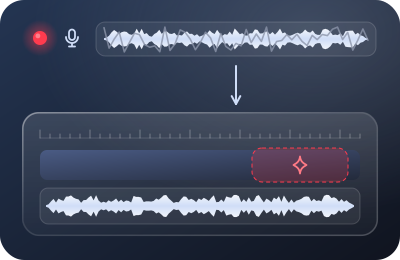
Camtasia is the default serious tool for course screencasts, and its audio philosophy is simple: the recorder captures your microphone as-is, and every noise remedy lives on the editing timeline, after the fact. This page is about making sure you never need those remedies.
Product behavior verified against TechSmith's published documentation on 20 September 2026. Disclosure: TechSmith runs an affiliate program and our Camtasia links are affiliate links, marked sponsored below.
Where Camtasia stands on the live-vs-cleanup line
On the recording side, Camtasia Recorder is a faithful scribe: whatever reaches your selected microphone device lands in the project, hiss and all. There is no live suppression stage inside the recorder. TechSmith's noise tooling — including the AI-driven Remove Noise audio effect — operates in the editor, dragged onto a clip after recording, and their own best-practices notes are refreshingly honest about its limits: it's designed for subtle, consistent background sound, not transient bangs and clatters.
We'll say what that implies plainly: in Camtasia, your voiceover quality is decided before the editor ever opens. The timeline effect is a decent safety net for a faint fan you didn't notice. It is not a plan. (And per the desk's standing rule, cleanup tutorials for editing suites are out of our lane entirely — this page ends where the timeline begins.)
- Your mic
- Live layeroptional, before REC
- Camtasia Recordercaptures as-is
- Editing timelineRemove Noise, after the fact
Recording side: everything before the recorder. The timeline effect is the safety net, not the plan.
The clean-in workflow, step by step
- Choose the mic in the recorder, not by faith. In Camtasia Recorder's audio dropdown, verify the exact input device before every session. Docked laptops are notorious for silently re-routing to a monitor's built-in mic — the classic "why is my narration underwater" discovery, made two hours too late.
- Decide your suppression before REC. Camtasia won't clean the stream, so if your room has any steady noise — fans, HVAC, street — put a live layer like Krisp between mic and recorder and select it as Camtasia's input. The captured media file itself is then clean, which matters double in Camtasia because that file gets reused across project revisions for years.
- Level the meter at narration volume. Camtasia Recorder shows an input meter: talk like you'll actually narrate — not louder — and set gain so peaks ride the upper-middle of the meter without ever slamming the top. Our field guide's −12…−6 dB rule applies verbatim.
- Record a throwaway minute first. Screen plus narration, played back in headphones. You're listening for device wrongness, gain crackle, and the room. Sixty seconds here has saved more Camtasia projects than any effect ever shipped.
- Keep narration on its own track and slate your takes. Camtasia keeps mic audio separable from system audio in the project — preserve that separation, speak a short slate at each take's head ("lesson 2, take 1"), and future-you can swap a sentence without touching the screen video. This pairs with the punch-in method beautifully.
- Hold thirty seconds of room tone before stopping. Same chain, same gain, same suppression state as the take. Here's why that clause matters — tone recorded through a different chain won't match and won't hide your edits.
A note on narrating after the fact
Plenty of Camtasia creators record the screen first and voice it later. Fine — but treat the voiceover session with the same recording-side discipline, and record it in the same room and chain across sessions. A course whose chapter three was voiced through different processing than chapter two sounds subtly "off" in a way learners feel but can't name.
What to buy — and what not to buy — here
Camtasia itself is the justified spend if you're producing structured course content: the recorder-editor integration, separable tracks and project reuse are the real value. What you should not buy is anything sold as a magic fix for noisy narration inside an editor — including leaning on Camtasia's own timeline effects as a routine. Clean capture is cheaper than any rescue, and two of the three tools in our default Camtasia chain cost nothing at all (your OS's device hygiene and the room-tone habit).
The desk's Camtasia chain
Krisp under Camtasia Recorder, levels set at narration volume, room tone at the tail. The media files land clean and the timeline effects stay in their drawer.
Run Krisp under Camtasia Get Camtasia
Both buttons are marked on the slate as paid: start a Krisp plan or buy a Camtasia licence from one and that vendor pays the desk a commission for the referral. You pay the vendor’s own list price, not a cent more. Krisp pricing verified 20 September 2026: 7-day free trial; Core $8/mo billed annually or $16 month-to-month; a 60-min/day free tier persists in Krisp's help-center docs. TechSmith affiliate program verified the same day.
Honest limits of this workflow
- Reverb still wins. A hard, echoey room defeats every tool named on this page; suppression removes noise, not reflections. Softest room you have, mouth closer to mic — done before REC.
- Live suppression can touch your consonants. At aggressive settings, any real-time suppressor may soften sibilants. Do one A/B test take in your actual room and listen — thirty seconds settles what forum threads argue about for years.
- Transients are nobody's specialty. Door slams and keyboard clacks mid-sentence survive suppression surprisingly often — and TechSmith's own guidance says the timeline effect isn't built for them either. The genuine fix is the punch-in retake: re-speak the one sentence, slide it in on the narration track.
- A wrecked take is a cleanup job. If something irreplaceable got recorded dirty, that's rescue territory in editing tools — a different discipline with different guides. Our decision page tells you when you're genuinely there.
The desk's Camtasia verdict
Camtasia rewards exactly the discipline this site exists to teach. It hands you a faithful recorder, separable narration, and reusable media — and quietly assumes you'll bring it a clean signal. Bring it one. Set the device and the level like they're unchangeable, put live suppression under the recorder if your room needs it, slate your takes, capture your tone. Do that for one course and the editing timeline becomes what it was always meant to be in this craft: the place where you arrange good audio, not the place where you apologize for bad audio.
Continue with what course platforms expect of your audio, or run the whole ritual from the pre-REC checklist.