Recorders · Loom
Loom voiceover noise: record clean, because the download won't save you
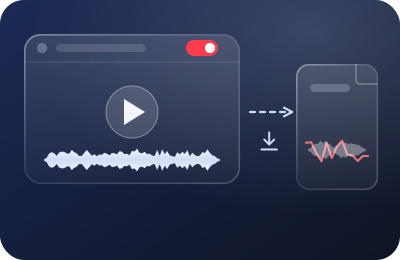
Loom does have noise suppression — and it behaves unlike any other recorder on this desk. Understanding exactly when Loom's filter acts is the difference between a clean async video library and a folder of noisy MP4s you thought were fixed.
Feature behavior on this page verified against Loom's support documentation on 20 September 2026. We link Loom directly — no affiliate relationship.
What Loom's Noise filter actually is
Loom's suppression is a playback-side toggle, applied after you record. Per Loom's own documentation: after recording, you open the video's Settings panel and switch on Noise filter. You can also hit Set defaults so the filter is on for every video you record going forward. The processing is reversible at any time — toggle it off and the original audio comes back instantly.
That design is genuinely clever for Loom's home turf: quick async videos watched in the browser. The viewer hears filtered audio; you never configured anything at capture time; and if the filter ever mangles a word, you can un-mangle it. For share-the-link workflows, turn it on, set it as default, and you're done — it's free behavior on the platform and it costs us nothing to tell you so.
The download trap
Loom's documentation is explicit: enable the noise filter and the reduction "will be reflected in the web player but downloaded Loom videos will include the original audio." The MP4 you export for your course, your editor, or your archive is the raw capture — coffee grinder and all. If you've ever downloaded a Loom that sounded worse than it did in the browser, nothing was broken. That's the design.
Noise filter onlyThe toggle cleans what viewers hear in the web player; the MP4 keeps the original audio.
- Your mic
- Loom captureoriginal audio
- Web playerfilter on playback
- Downloaded MP4original audio
A live layer under LoomThe capture itself is clean, so the player, the MP4 and every future edit inherit it.
- Your mic
- Live layer
- Loom captureclean
- Web playerclean
- Downloaded MP4clean
So: two Loom workflows, pick yours honestly
| Your Looms… | Noise plan | Why |
|---|---|---|
| Live and die as shared links (async updates, walkthroughs, code reviews) | Toggle Noise filter on and set it as your default. Stop there. | Viewers only ever hear the web player, which is where the filter lives. |
| Get downloaded — for course modules, editing, re-hosting, or archives | Treat Loom as a raw recorder: put the suppression before the capture (a live layer like Krisp under Loom, plus proper levels), and treat the web toggle as a bonus. | The file keeps the original audio, so only what was clean going in stays clean coming out. |
Most course creators are secretly in row two — the walkthrough you record today has a way of becoming Lesson 4.2 next quarter. If there's any chance a recording graduates into edited content, record it as if the filter doesn't exist.
The recording-side setup for Loom
- Pick the microphone deliberately. In the Loom recorder's device menu, confirm the mic is the one you think it is — not the laptop's internal array, not a display's built-in mic, not a virtual device left over from some app. Wrong-device capture is the most common "Loom sounds terrible" cause we see, and no filter fixes distance.
- Kill the OS's helpful processing. On Windows, Loom's own troubleshooting docs point at system Audio Enhancements as a source of broken sound — disable enhancements on your mic device and let the chain stay predictable. On macOS, check that whatever app-level "voice processing" another program enabled isn't still latched onto your input.
- Set input gain at the OS level. Loom won't give you a proper meter, so set your mic's input level in system sound settings while speaking at narration volume, then confirm with a ten-second test Loom played back in headphones. Target: clearly louder than your room, no crackle on hard consonants. Our field guide covers levels in depth.
- Put live suppression under Loom if the file matters. A system-wide layer like Krisp presents itself as a microphone; select it inside Loom and the capture itself — including the downloaded MP4 — is the cleaned stream. This is the one move that closes the download trap completely.
- Slate and room-tone the take. If the recording might be edited later, speak a two-second slate ("module three, take one") and hold thirty seconds of silence before you stop. Room tone is what makes those future edits invisible.
Closing the download trap
Krisp under Loom means the noise never reaches the file — web player, MP4 download and future edits all inherit the same clean take. Run the 7-day trial against your noisiest recording hour and download the result before judging.
Marked on the slate as paid: start a Krisp plan from this button and Krisp pays the desk a commission for the referral. You pay krisp.ai’s own list price, not a cent more. Krisp pricing as of 20 September 2026: 7-day free trial, Core at $8/mo billed annually ($16 month-to-month); a 60-min/day free tier survives in Krisp's help-center docs. Loom itself: linked direct, loom.com, no affiliate relationship.
What Loom's filter won't do — with or without downloads
- Reverb. A boomy room reads as "echoey Loom audio" but it's reflection, not noise; suppression of any kind leaves it alone. Softer room, closer mic — that's the fix, and it happens before recording.
- Clipping. If the input gain was hot enough to distort, both the web player and the file carry the damage forever.
- Other people's noise. Recording a call-style Loom with a guest? The filter can't reach into their room. Their side needs its own recording-side care.
- Editorial rescue. If a take is genuinely wrecked, that's a cleanup-after problem in an editing tool — a different craft than this page. Before you go there, read our live-vs-cleanup decision guide so you only pay the rescue tax when it's truly owed.
The desk's Loom verdict
Loom's noise filter is the most honest kind of feature: great at exactly what it claims, silent about what it doesn't. For link-shared async video it's a genuinely free win — enable it, default it, forget it. For anything that becomes a file, Loom is a raw recorder wearing a clean recorder's UI, and your voiceover needs the full recording-side treatment: right device, sane levels, live suppression underneath, room tone at the tail. Do that, and the toggle becomes what it should have been all along — a second coat of paint, not the structure.
Next stop if you're building courses out of your Looms: what platforms expect from course audio, and how to narrate it in one pass.