Take One · Entry 002
The laptop fan in your take (and how to out-plan it)
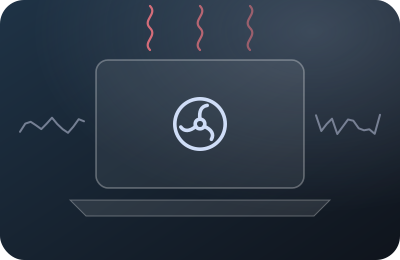
There's a special irony in screencast audio that meeting-callers and voice artists never face: the recording session is itself the noise source. Encoding video is real work. Your machine idles in silence all afternoon, you hit REC, the encoder wakes up, the silicon warms, and ninety seconds into your best explanation the fan arrives like a tiny jet reaching cruising altitude — directly beside the microphone, which on a laptop may live centimeters from the exhaust vent.
The forums answer this with shopping lists. The desk's rule is software and scheduling only, so here's what actually works without spending anything.
Lower the heat, not just the noise
- Let the GPU carry the encode. Most serious recorders can use your machine's hardware video encoder instead of hammering the CPU — in OBS it's an encoder selection in the output settings, and on modern laptops it's the single biggest thermal lever you have. Hardware encoding blocks run cooler than a software encode flogging four cores, and cooler means the fan curve never finds its angry gear.
- Kill the furnace apps before REC. The browser with forty tabs, the sync clients, the chat apps repainting their little badges — they're all pre-heating the machine before the encoder adds its load. A recording session deserves the same app hygiene as a battery emergency.
- Drop what you're asking of the encode. Recording a 4K canvas at 60 fps to narrate a settings menu is thermal vanity. Screencasts of static-ish UIs survive 30 fps beautifully, and a saner canvas keeps the encoder in its comfort zone. Your fan curve hears the difference.
Out-schedule the thermals
- Record cool. The fan isn't triggered by workload directly — it's triggered by accumulated heat. Start sessions on a rested machine (not straight after an export or a video call), and the thermal budget buys you twenty-odd quiet minutes before things warm up.
- Work in lesson-sized blocks. The one-pass method already wants short, complete takes; thermals agree. Record a lesson, stop the encoder, let the machine breathe while you review — the fan spins down during exactly the minutes you weren't recording anyway.
- Notice your building's quiet hours apply to your laptop too. A cool room is a slower fan curve. The 7 a.m. session isn't just free of lawnmowers; it's ten degrees of ambient advantage.
And for the whir that remains
Here's the good news at the end of the physics: a steady fan whir is the single most solvable noise in this entire craft. It's constant, broadband, and nothing like a human voice — which makes it the textbook meal for live suppression. OBS's RNNoise filter eats it for free; a system layer eats it under any recorder. The moves above aren't about achieving silence — they're about keeping the fan out of its frantic top gear, where it starts modulating (surging up and down), because changing noise is harder on every suppressor and utterly fatal to room tone continuity.
So the entry's whole doctrine, in one line: keep the fan boring, and let the chain erase it. Add "encoder set, furnace apps closed, machine cool" to your copy of the pre-REC checklist and the jet never reaches altitude in the first place.
FILED UNDER: SESSION PLANNING · THE CHAIN